 Bubble Letters
 for Google Docs and Slides
Type your title, hit Copy image, and paste it into Google Docs, Slides, or Canva. The background is transparent, so it sits on any color.
Sends your text to an AI model
Put BOOK REPORT in a doc or slide
Transparent background, sharp at 2× size. Works in Google Docs, Google Slides, Canva, PowerPoint, and Word.
Why an image instead of a font?
Google Docs and Slides only let you pick from Google’s own font list, and you can’t upload a font of your own. None of them look like hand-drawn bubble letters. An image looks the same on every computer, including school Chromebooks, and it can’t get swapped for Arial when someone else opens the file.
Placing it in your doc
After you paste, click the image and pick “In front of text” from the toolbar so you can drag it anywhere on the page. Drag a corner to resize it and it keeps its shape. In Slides, the image goes wherever you paste it and you can move it freely.
If Copy image doesn’t work in your browser, use Download PNG and then Insert → Image → Upload from computer.
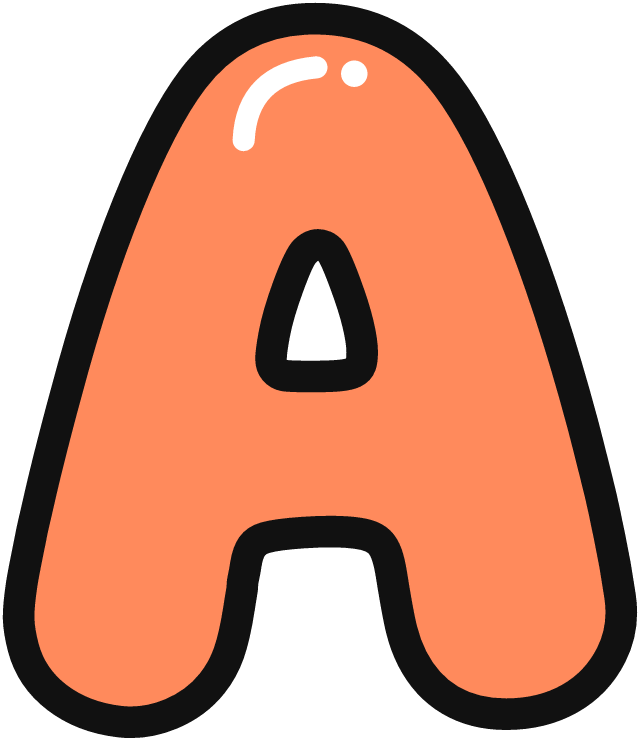 A
 B
 C
 D
 E
 F
 G
 H
 I
 J
 K
 L
 M
 N
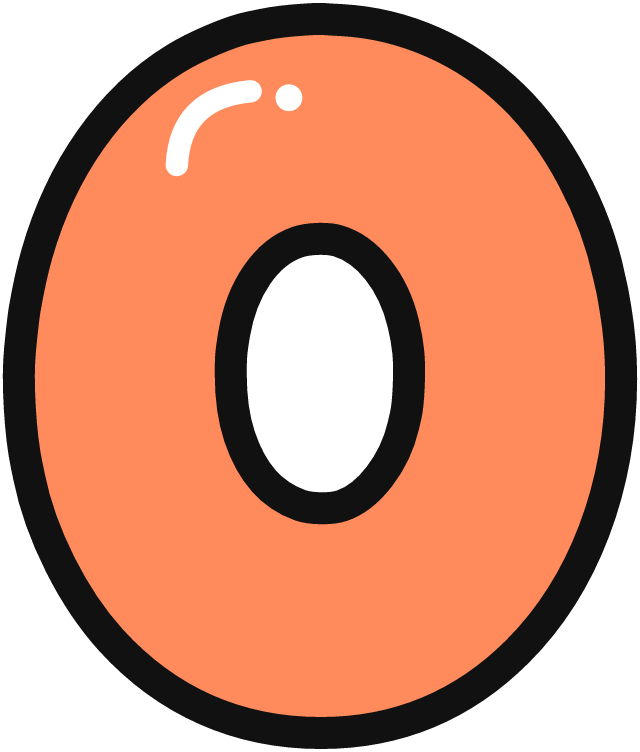 O
 P
 Q
 R
 S
 T
 U
 V
 W
 X
 Y
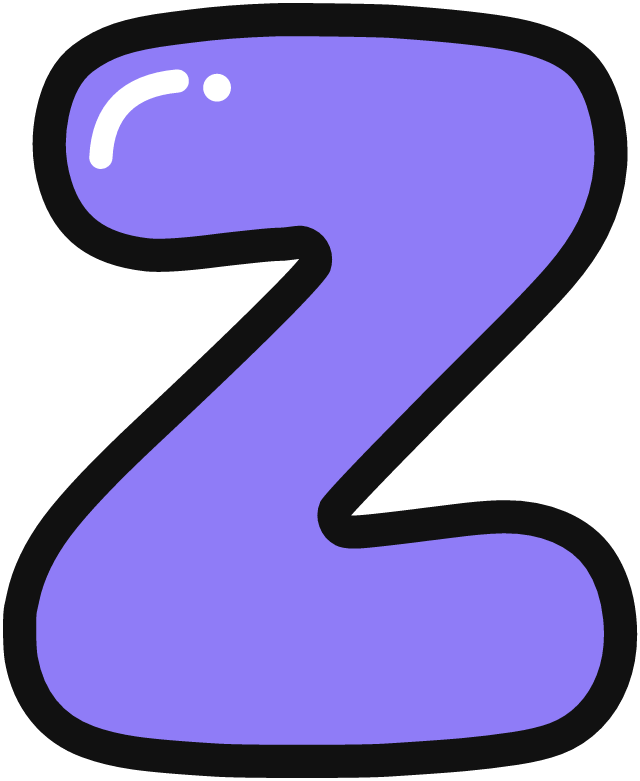 Z